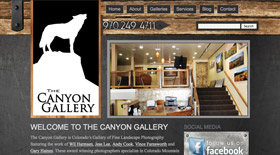
We just published the Artefinosurfacedesign.com website this past week and have been getting great feedback. It’s a WordPress based site that uses the SimpleViewer Pro slideshow software. Jimmi Lou Stack is a gifted painter with an eye for detail as you will see in her work (and website).
Archive
Archive for the ‘WordPress’ Category
New Website : Ouray Brewery
Wednesday, April 14th, 2010
Check out one of our latest completed web projects, the Ouray Brewery. The client wanted to go with something that was rustic, fun, and representative of Ouray. The brewery doesn’t open until this summer sometime, so we’ll be able to add more pictures and content then. This site was built on the WordPress engine.
The Power of CSS
Wednesday, September 2nd, 2009Jason did a guest blogger appearance at redheadwriting.com this week. Read his article titled “The Power of CSS” and find out what CSS can do for you. It’s written so a designer or average Joe will understand. Erika has many other interesting and informative articles on the redheadwriting.com site.
Here’s the link one more time for you!
Read it, tweet it, then sign up to become a fan on Facebook.
Editing Your Site with WordPress part 1
Tuesday, August 18th, 2009Wordpress is wonderful for many reasons. One of which, is that it is just so darn easy to make simple updates to your website. That said, a first timer can be a little overwhelmed as to where to start. This tutorial assumes that your site is already set up and designed, and you’re in there to make some edits or add a blog post. Since WordPress is constantly updating it’s software, the pics in this tutorial are likely to look slightly different than what you see before you on your screen.
Adding a Blog Post
Note: Posts and Pages are edited and created the same. You’ll use a page for permanent information about your site. You’ll use a post as a less than permanent page, a news article, or maybe a piece of writing you want on the site.
- Log in to your site. Not the homepage, but the administration area. Usually it’s something like http://mysite.com/wordpress/wp-admin. Your designer should have provided you with a link and an username / password combo.
- Once you’ve logged in, the first page you’re presented with is the Dashboard. The Dashboard has a nice overview of information regarding your site. Ignore most of it at this point. The important stuff is all located on the left sidebar. To find out more about the items in that sidebar, go to http://codex.wordpress.org/Administration_Panels. Let’s get to adding a post.
- Adding a post will update the blog portion of your site with a new post. How this displays on your site will depend on how your site is set up. Begin in the left sidebar and go to Post > Add New. If Add New is not displayed, click on Posts and it will drop down to allow more options. There is a video on how to do this here: http://www.napfish.ca/tutorials/wordpress/wp-post.html. This short video will also show you how to add your post title, some basic content, and then publish it.
- You’re probably going to want to do more than just add a title and a sentence, so we’ll begin here by going over a few more of the features.

(1) These buttons are to add an image (see more about adding images here), a video, music, media (such as a PDF).
(2) The buttons to the left of this are standard word processing formatting buttons (bold, italic, left align, etc..). This is to add an “add more” link which enables you to show a portion of information and hiding the rest. Left of the “add more” link button is the “link” and “unlink” buttons. Select a portion of text you want to link, then click on the button with the chain icon (the link button). Insert the URL (web page address) for the page you want to link to. The target should be a new window if it’s a URL outside of your site, and in the same window if it’s a URL within your site. Add a title for search engines and accessibility if you’d link in the bottom field.
(3) This is the “Show Kitchen Sink” button which makes the second row of buttons visible/invisible.
(4) Add an image, a slide show, or a image list with the NextGen Gallery Plugin (if installed). More about adding NextGen slide shows and images here.
(5) Choose between editing in the Visual Editor, or in the HTML mode. In most cases you’ll use the Visual Editor, but if you need to add a piece of code such as a google map, paypal button, weather sticker, switch to the HTML mode. Keep in mind that sometime returning to the Visual Editor on that page will chop portions of your HTML code. You may need to re-paste that code each time you edit that page with the code in it. It may be better to add the code to a template file if this is the case. Ask your designer about doing this. - Here are some other great features.

(1) Use this pull down to format text as a heading or as paragraph. Paragraph should be used for all copy and heading should be used for titles. Only use one “Heading 1″ per page. In some cases, your page title will be set as “Heading 1″. This will be the case if the page title appears in the content, not just in the navigation. It’s OK to use “Heading 2″ or “Heading 3″ more than once. In using these tags to organize your content, remember they are set up in a hierarchy.
(2) When you create documents in MS Word, the software throws in a bunch of garbage code that you don’t want to go into the page. The “paste as text” and “paste from word” will strip most of this garbage code out before it’s inserted into the page or post. If you switch to HTML mode, you’ll see something like this: <p class=”MSNormal”><font size=”4″>My Test</font></p>. Click the button, paste your text into the input field, than hit the insert button. Click over to the HTML tab to make sure nothing funny slipped by. If you still see garbage code, you can paste your text into Notepad (TextEdit for Mac), then copy it back out, and into your WordPress document. NotePad (TextEdit for Mac) will need to be set to “plain text” for this to work properly. If you have several links embedded in your MS Word document, you can copy into Dreamweaver’s Design View, switching to Code View, and then pasting it into WordPress’ HTML view. That should retain the links and formatting.
(3) If your halfway through updating your post or page, but noticed the toast was burning downstairs, you can set the visibility to Private, and Update the Post. This will save it, but not publish it to the site. Once you’ve cleared the smoke in your kitchen, you can finish your document, and set the visibility to public. You’re also able to password protect your post here.
(4) You can add tags to your document here. Think of them as keywords. You can then later sort by these tags to find your document once it’s lost in the hundreds of blog posts you’ve published.
(5) Categories are another way of organizing your posts. You can then choose to only display certain categories on a page, search by category, and so forth. Organize now, so you can save yourself time later! - That pretty much sums up the majority of the page and post editing features that you’re most likely to use. Go ahead and hit the publish button (just above the Post Tags) or Update Post if you’re editing an existing document, and you’re live! Wordpress will automatically update the navigation and links in your site. You can find additional information about the post page and writing posts here.
Adding a Page
Adding a page to your website is very much the same as adding a post. Here are the minor differences in features.
- To begin with, go to the Pages drop down in the left sidebar and choose either Add New or Edit. If you’ve choosen, Edit, select the page you want to edit from the menu.
- You’ll notice the page looks almost identical to the Post Editing page.
(1) You can change the URL for your page here. Don’t add any special characters like ?#$%” as that’s not allowed for URL’s. Normally you don’t need to change this, but you may want to add some extra keywords into your page URL for search engines. Also, if you have a folder on the server with the same name as your page, then you may get the folder contents displayed instead of your page.
(2) The Attributes Panel
Parent – You can select a parent for your page to keep the navigation form getting too long, or just to organize your content. For example, you may want to put a page called “Hosting Plans” under a parent page called “Services”. Also, maybe “Hosting Plans” is already under “Services”, but you want to move it under a new page your just created called “All About Hosting”. Once your page has been updated, WordPress automatically updates the navigation to adjust for the change you made here.
Template – On sites that have different page layouts for different pages, or different sidebars, you can select which layout you want to use for your page here.
Order – This is the order of the navigation. For example, I’ll put the home page at 0, the about page at 10, a services page at 20 and the contact page at 90 (since the contact page is usually the last in the navigation). That way, later if I decide I want a new page called products, I can give it an order number of 15 and it will appear between about and services.
(3) Page Revisions – So maybe the new content you added was not such an improvement to the site. Maybe some of the code you pasted into the HTML view broke the whole page layout. Do not fear, there’s no need to call your web designer, just select the last good copy of your page from the page revisions menu and you’re back to where you were. Phew, disaster averted! - As you scroll down the Page Edit screen you’ll see some other windows in the center column. You can enable or disable comments in the discussion window. If you have an SEO plugin installed (we recommend the SEO Nova plugin) then you can add your page title, meta keywords, and meta description there.
This definitely not all you need to know about page and post updating, but it should be enough information to have you well on your way.
This document should at least provide for a reminder of those features that your web designer went over with you a month or two ago, but now you don’t remember so well. Where did those notes I took go to? Here you are, those notes you were supposed to take instead of doodling, saved online for your site updating pleasure! Best of luck out there!
Adding images and slideshows to WordPress
Sunday, January 25th, 2009There are (currently) two ways to add images to your pages through WordPress.
- One way is through the Add Media Icon which is just right of the Upload/Insert just above where you put your content into a post or page.
First you’ll browse for your image. You’ll then need to decide whether or not you need the image resized and/or a thumbnail created. Resizing your images is the norm for web use, so if you haven’t done so already, you’ll want to keep that box checked. The default 640 px is a good starting point. I normally do mine for 700 px. Keep in mind that most screens are between 1000 px and 1400 px wide. If the pic is going to be on the bigger side, it may be best to display a thumbnail that can be clicked on for a larger image. The next step is to insert the image into the post. You’ll want to decide if you want to display the image at full size, or the thumbnail if you created one. You also want to decide if you want the image aligned left or right or center. Keep in mind if you align the image, the text will wrap around it. Normally that’s a good thing. Often people have a tendency to center images or headings, but this is a design no no unless the whole page is already centered. You want to keep your alignments consistent for text. In most cases it will be all left or centered. That said, aligning an image to the right will not throw off how the page looks if the text is all left aligned. You just don’t want to mix centered content with left aligned content. The next step will be to push the insert into post button. Then you’re all set. The code has been created for you. If you click on the HTML tab, it will look something like this:
<img class=”attachment wp-att-214 alignleft” src=”http://visualadventures.com/blog/wp-content/uploads/2009/01/wordpress_image.jpg” alt=”add an image” width=”298″ height=”331″ /> - The other way is via the NextGen plugin. This site has a good description of how to use the NextGen Plugin. http://www.jennmearswebdesign.com/2008/08/13/using-the-nextgen-gallery-plugin-part-1/
The NextGen button will allow you to insert a slideshow, an image, or an image list. This is a great way to display a bunch of images at once. You can create a gallery, and then select that whole gallery to be displayed in your page or post.
Additional Information